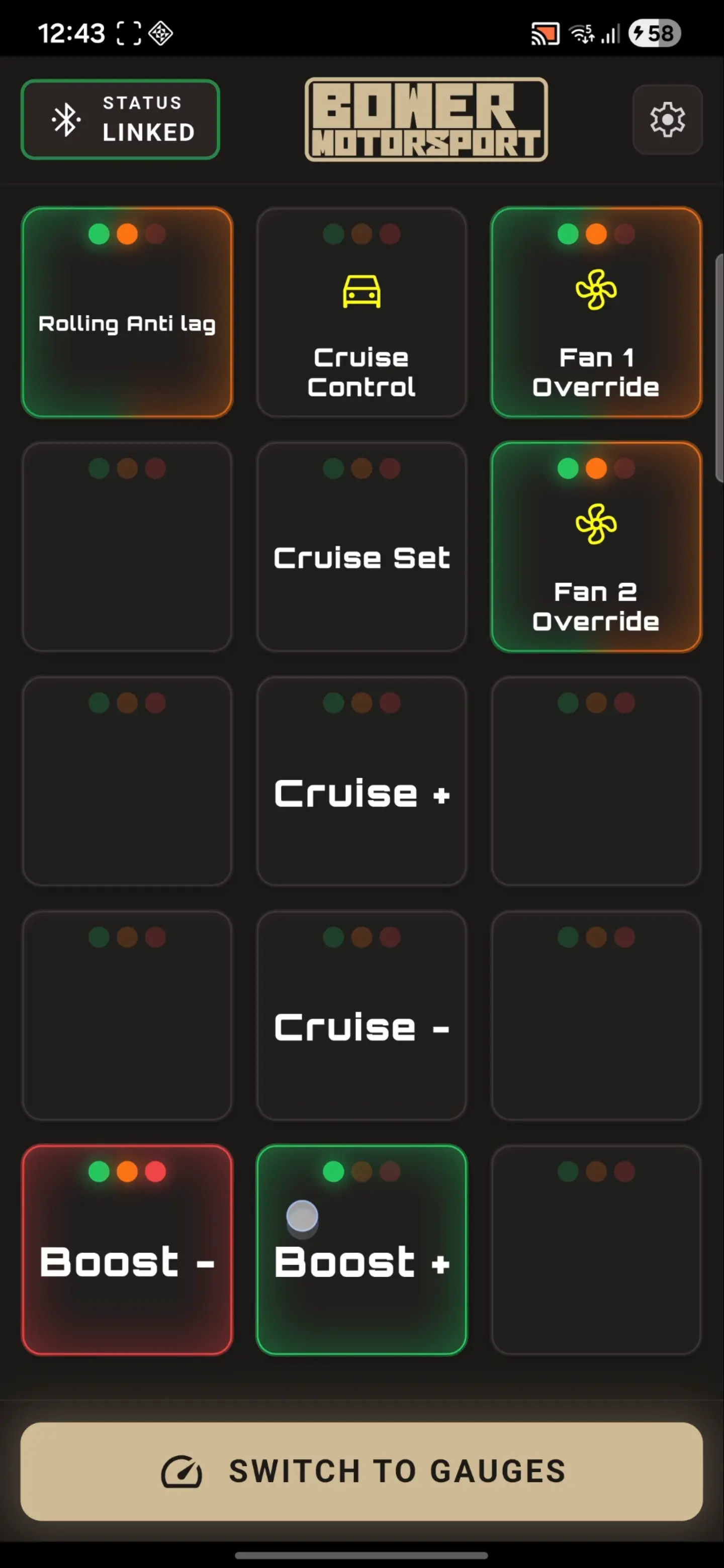
The OmniCAN app is your ultimate performance cockpit. Whether you're configuring a virtual keypad or monitoring high-speed ECU data via the digital dash, this guide will get you dialed in.
---
## 1. GETTING CONNECTED
### Requirements
- **OS:** Android 10.0 or higher.
- **HW:** Bluetooth 5.0 (BLE) required.
- **Gateway:** Ensure your OmniCAN Gateway is installed correctly including termination resistor if required.
### Pairing Procedure
1. **POWER ON:** Ensure your OmniCAN Gateway is powered (Ignition ON) and has been enabled in the ECU software.
2. **PAIRING MODE:** To get into pairing mode the OmniCAN Gateway must be powercycled 4 times within 7 seconds. To do this, cycle the ignition at least 4 time within 7 seconds.
* *NOTE:* The OmniCAN Gateway will only remain in pairing mode for 3 minutes.
3. **LAUNCH:** Open the OmniCAN app on your Android device.
4. **PERMISSIONS:** Grant Bluetooth and precise Location permissions when prompted.
* *NOTE:* Your location is never used by the app. The app requires this permission only to gain access to blueooth.
5. **SCAN:** The app should automatically detect the OmniCAN Gateway. If not, tap the **DISCONNECTED** button in the top left and **SCAN**.
6. **SELECT:** If you manually scanned for the gateway, tap on **OmniCAN Gateway** from the list.
7. **AUTHENTICATE:** When prompted, pair with the gateway.
8. **READY:** Once connected, the top status bar will show a green **LINKED** icon.
* *NOTE:* Once paired, moving forward the gateway will automatically connect to the app when in range. If connection is lost and regained the app will sync the correct button and led states on reconnect to ensure reliable operation.
---
## 2. VIRTUAL KEYPAD MODE
Replace physical switches with a professional virtual interface.
No cutting, no custom mounts, just seamless integration.
### How it Works
1. **KEYPAD:** The app emulates a Haltech 3x5B keypad out of the box and can be switch to a 3x5A keypad using the NSP/ESP software. See [ECU Configuration](/docs/ecu_configuration).
2. **LED STATES:** Each button mimics the physical LED states of the ECU function.
| LED POSITION | COLOR | MEANING |
|:---:|:---:|:---|
| **LEFT** | ● GREEN | **BUTTON ACTIVE:** The virtual switch is ON. |
| **MIDDLE** | ● AMBER | **FUNCTION STATE:** The output (e.g., fan) is currently active. |
| **RIGHT** | ● RED | **ERROR:** Circuit fault detected by the ECU (e.g., short circuit). |
2. **CUSTOMISATION SETTING:** To customise the keypad simple access the settings menu via the button in the top right corner and select the **Keypad Customisation** menu.
3. **LABEL AND ICON COLOUR:** You can change the colours and values of the labels and icons via the **Icon Colour** and **Text Colour** buttons at the top of the screen.
4. **LABEL AND ICON VALUES:** To adjust the **Label Text** and **Icon**, tap the pencil icon on the button you wish to change and a customisation dialog will appear.
5. **LOGIC:** The app automatically follows the button logic (Momentary vs Toggle) and function defined in your ECU settings.
---
## 3. DIGITAL DASH MODE
The Digital Dash is designed for high-visibility monitoring of your vehicle's health.
### Features
* **CUSTOM GAUGES:** Accessing the **Gauge Customisation** menu will allow you to add, remove, reposition and edit all gauges.
* **CHANNEL SELECTION:** Choose from over 64+ ECU channels including RPM, Boost, Lambda, and more. All channels from the Haltech ECU CAN Broadcast Protocol are supported.
* **ALERTS:** Alerts can be setup for each gauge. There are 2 types of alerts:
* **WARNING:** This will trigger a warning alert and the gauge will turn yellow if high or teal if low.
* **CRITICAL:** This will trigger a critical alert and the gauge will turn red if high or blue if low.
* **ALERT CUSTOMISATION:** Vibration, Visual and Sound alerts can be enabled and disabled on a per gauge basis.
---
## 4. ADVANCED FEATURES
### ECU Reboot Detection
In the event of an ECU power cycle or reboot, the OmniCAN app automatically re-synchronizes with the hardware in milliseconds. This ensures your virtual switches remain in the correct state without user intervention.
### Connection Dropout Sync
If the connection to the gateway is lost, the app will automatically re-sync with the gateway when the connection is re-established. This ensures that the app is always in sync with the ECU.
### Over-The-Air (OTA) Updates
Keep your gateway at the cutting edge. When a new firmware version is released, you can update your hardware directly through the app over Bluetooth—no cables required.
A popup will appear when an update is available, guiding you through the seamless update process.
During updates, do not power off the gateway, disconnect from the gateway or close the app.
---